Skip to content

How it works

Every job in ParkOS, step by step

Short steps with real screens. Pick a job from the list.

Get started

In the app

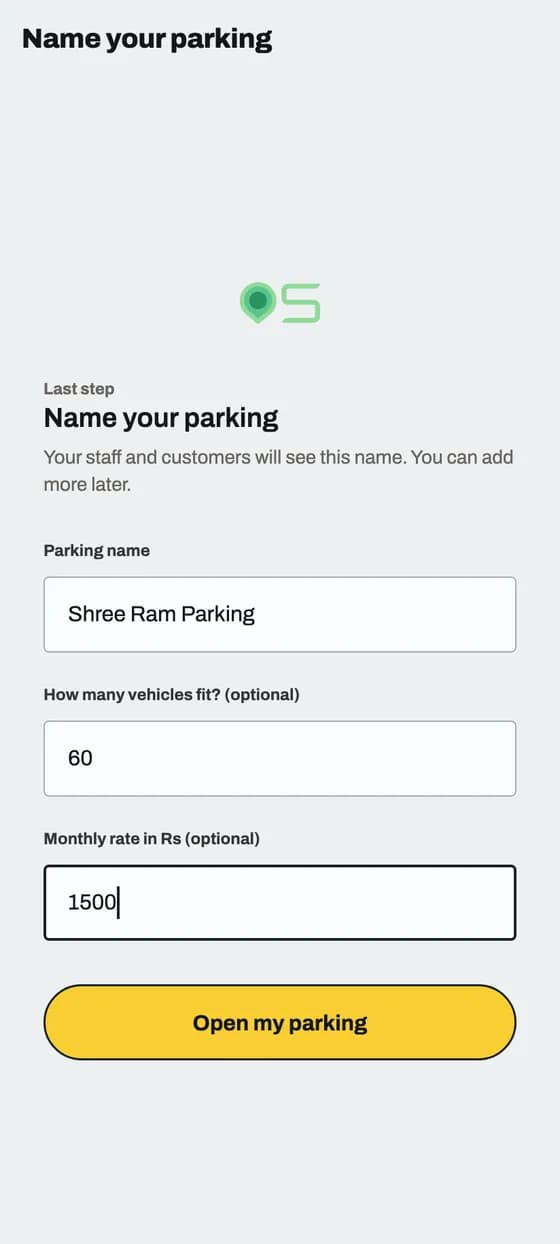
Sign up and add your parking

You only do this once. It takes about 10 minutes.
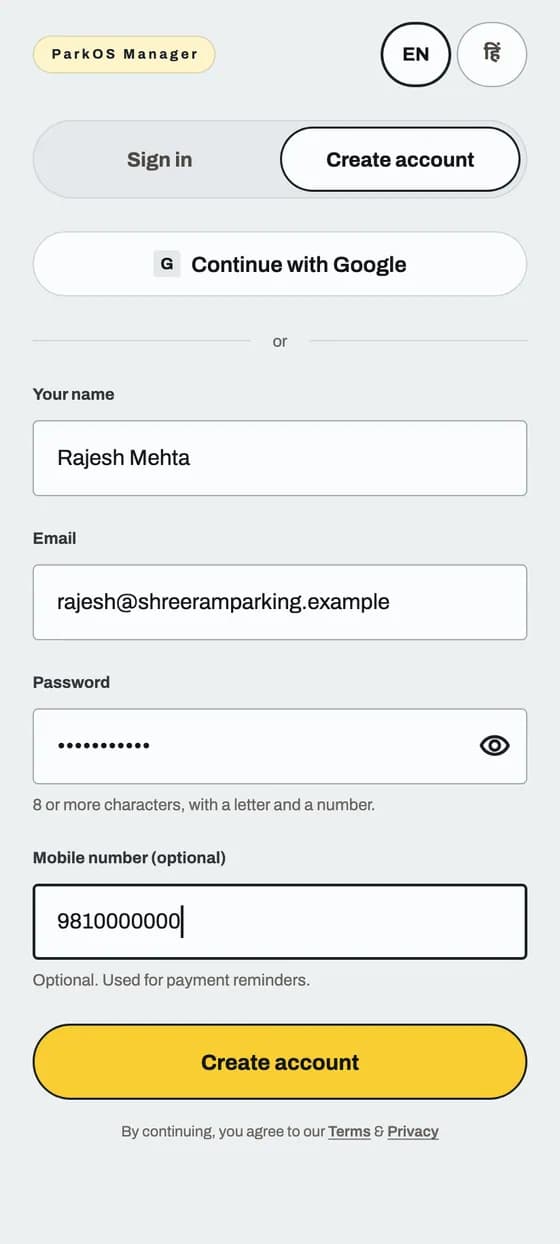
Sign up and add your parking: screen 1 of 2

Good to know

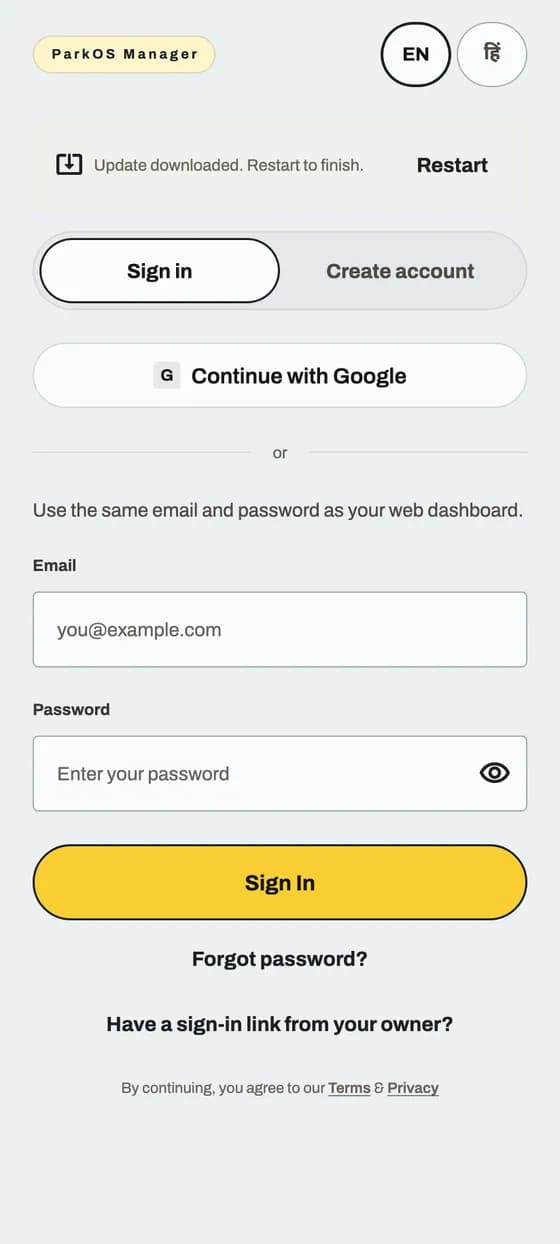
  • No email after 2 minutes? Check Spam, then tap Send the code again.
  • You can tap Continue with Google instead of typing a password.

In the app

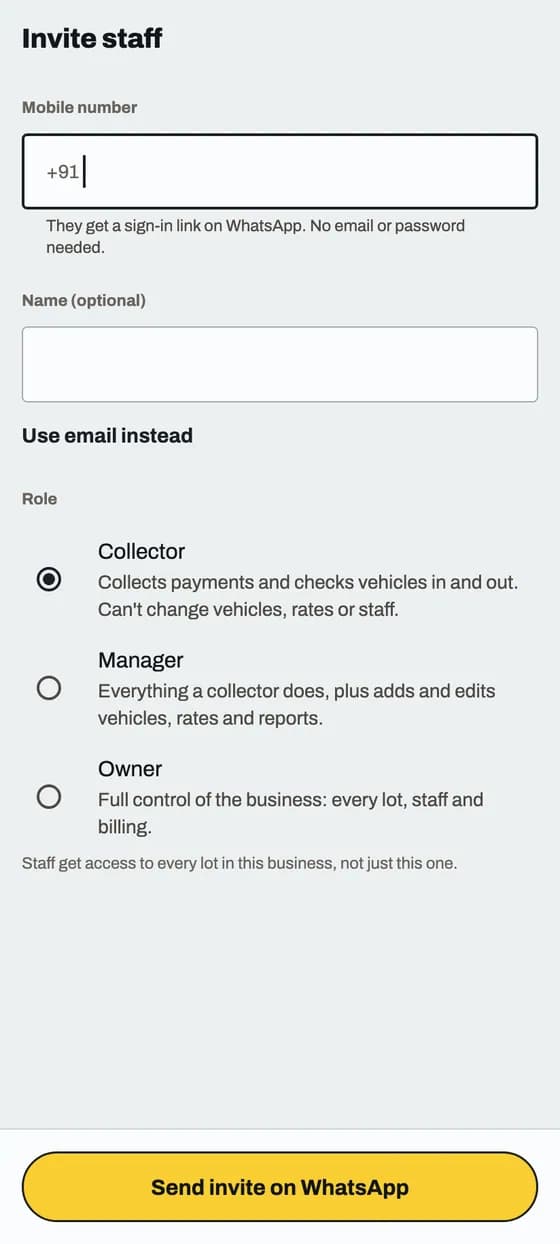
Add your staff

Staff join with a link you send. They do not sign up on their own.
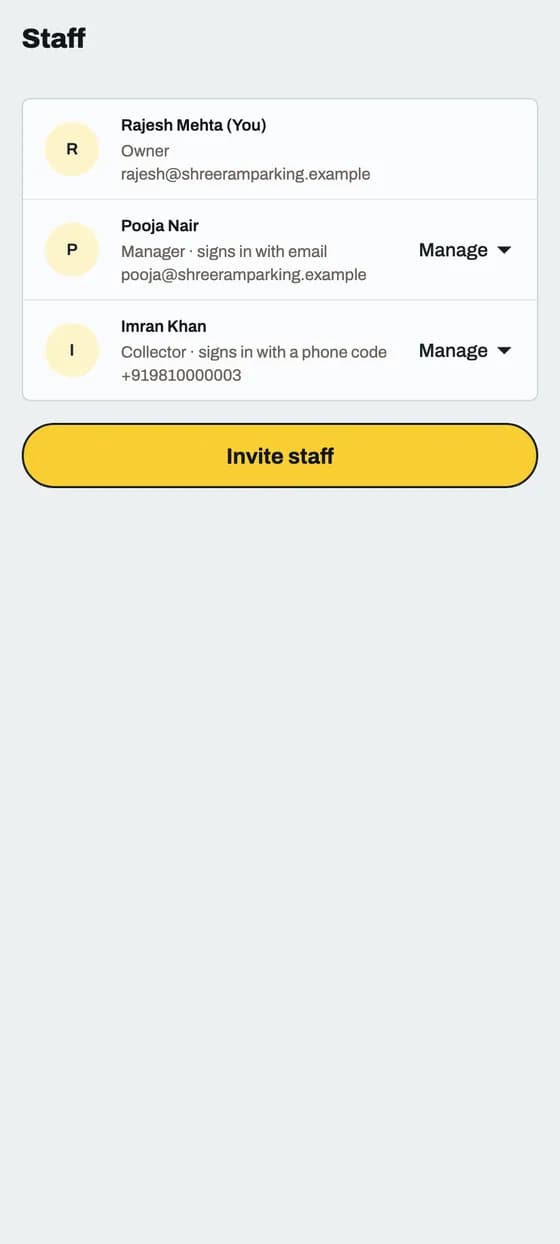
Add your staff: screen 1 of 2

Good to know

  • Parking admin is the Owner and can change everything. Parking staff is a Manager, who runs the day, or a Collector, who works the gate.
  • They tap the link, install ParkOS and join. The link works once, for 7 days. Invited by email? On the website, tap Copy invite link on their row to send it yourself.
  • A Collector sees only what a Collector can use. Billing, Slots and the parking details page stay hidden.

In the app

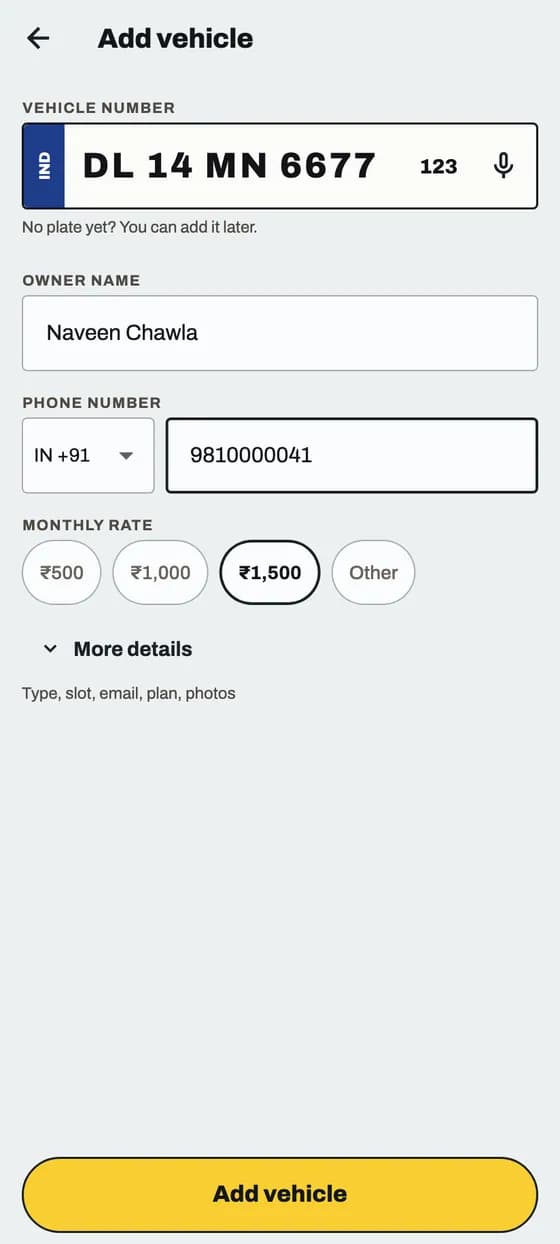
Add a vehicle

A vehicle is one monthly customer: a plate, a name, a phone number and a monthly amount.
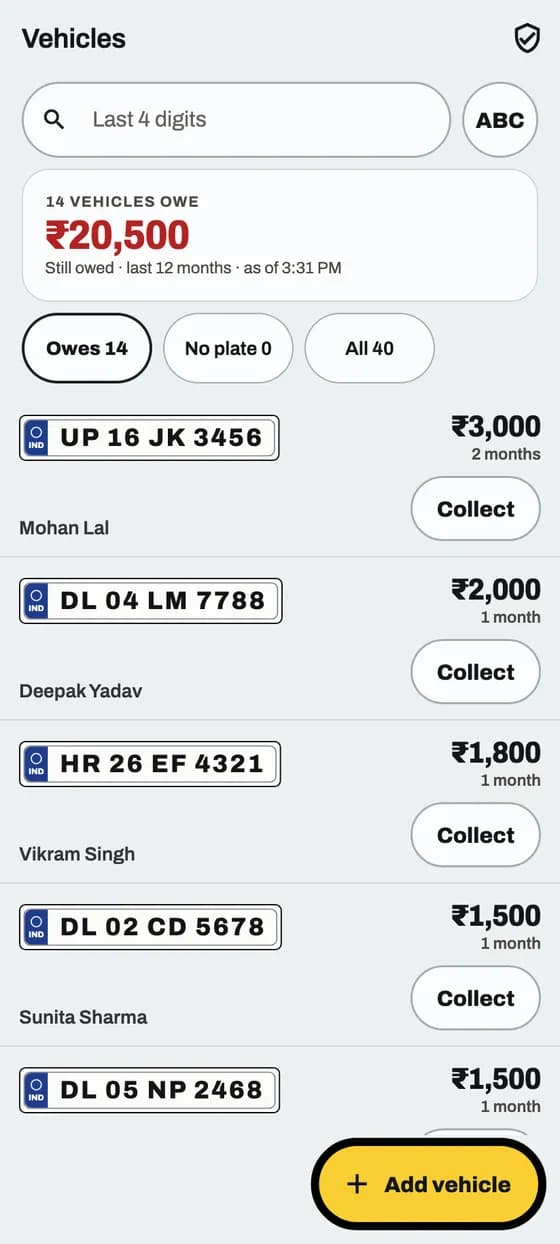
Add a vehicle: screen 1 of 2

Good to know

  • A plate can be on only one vehicle. If it is already used, ParkOS says so and lets you open that vehicle. The website also says whose vehicle it is on.
  • The phone number must be a real Indian mobile: 10 digits, starting with 6, 7, 8 or 9.
  • A Collector cannot save a vehicle. Ask a Manager or the Parking admin.

In the app

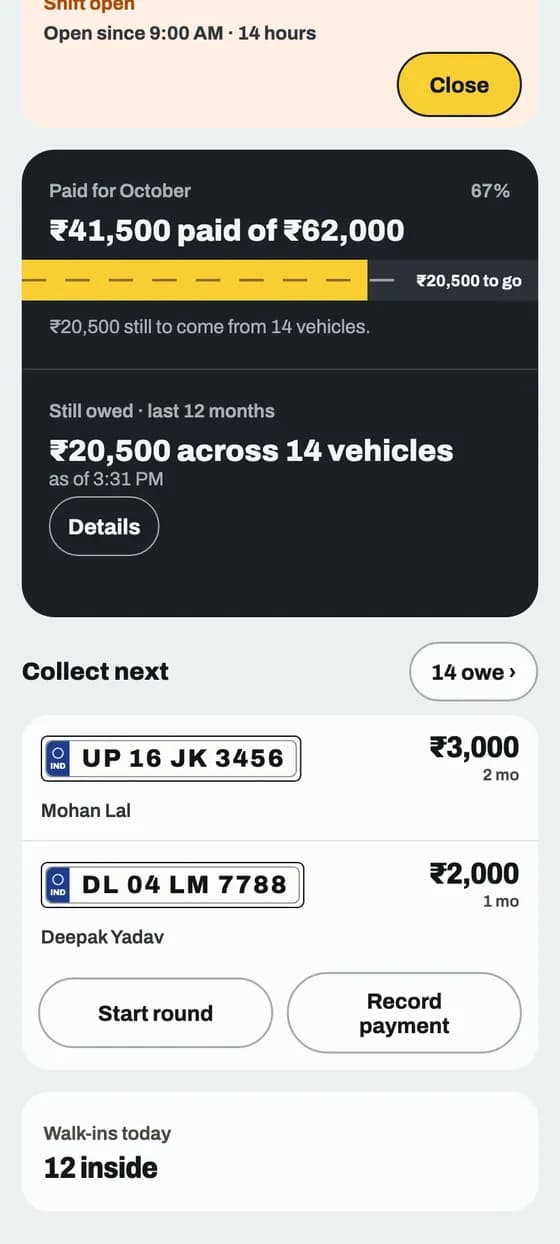
Read your Home screen

One look shows how the month is going and who to collect from next.
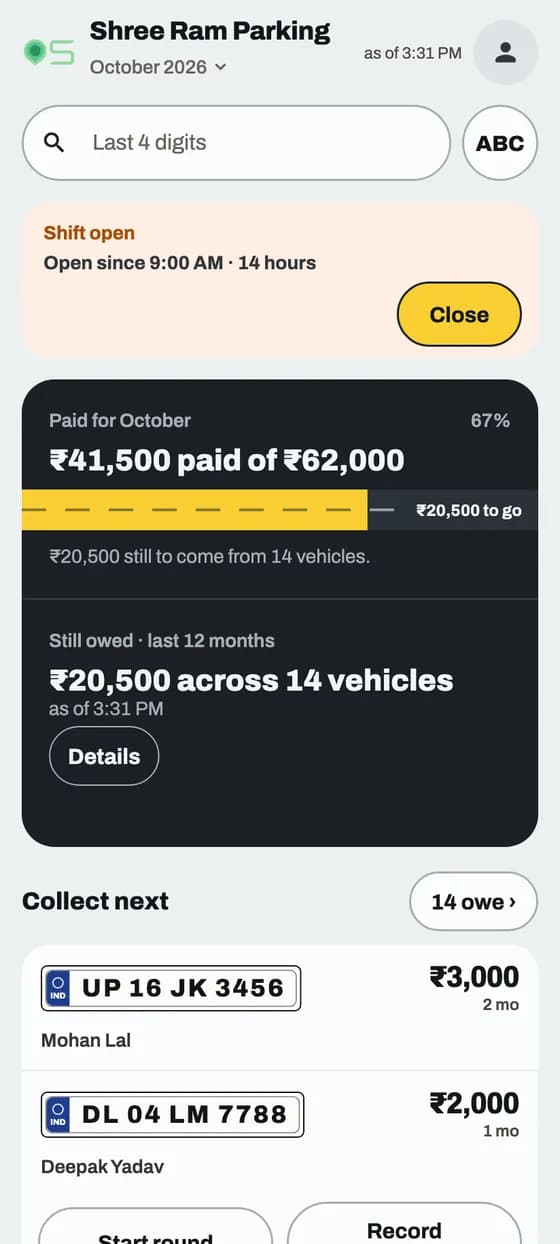
Read your Home screen: screen 1 of 2

Good to know

  • Paid for and to go count monthly rent only. In the app, unpaid extra charges, such as a late fee, show on their own line: Unpaid charges. Money you collect for a charge shows in Came in on the Money tab.

Collect money

App and website

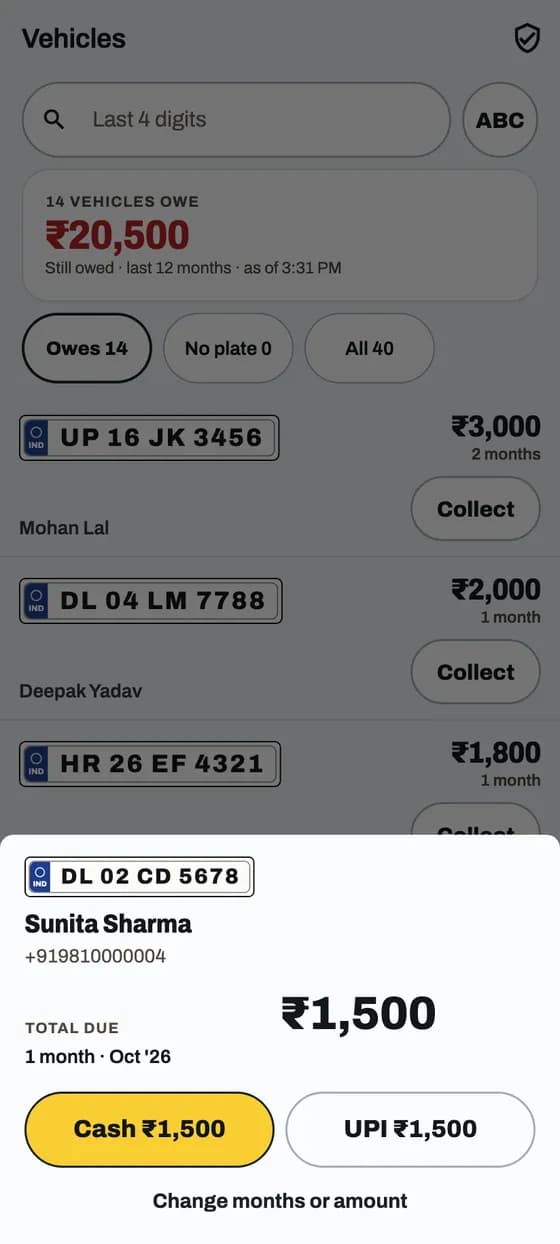
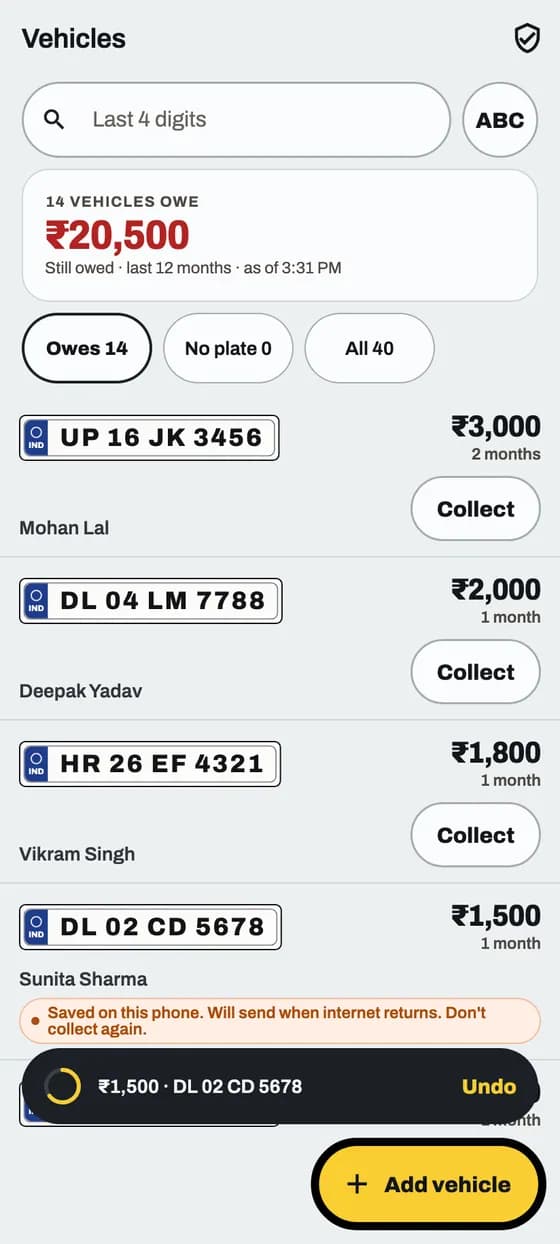
Collect money from a vehicle

One tap for cash. Tapped by mistake? You can undo it.

Collect money from a vehicle: screen 1 of 4

Good to know

  • No internet? It still works. The payment is saved on the phone and sent later. The app marks it Waiting for internet. The website says Saved on this phone. It goes by itself as soon as you are back online. Do not collect it again.
  • Too late to undo? Open the vehicle, tap History and refund it.

App and website

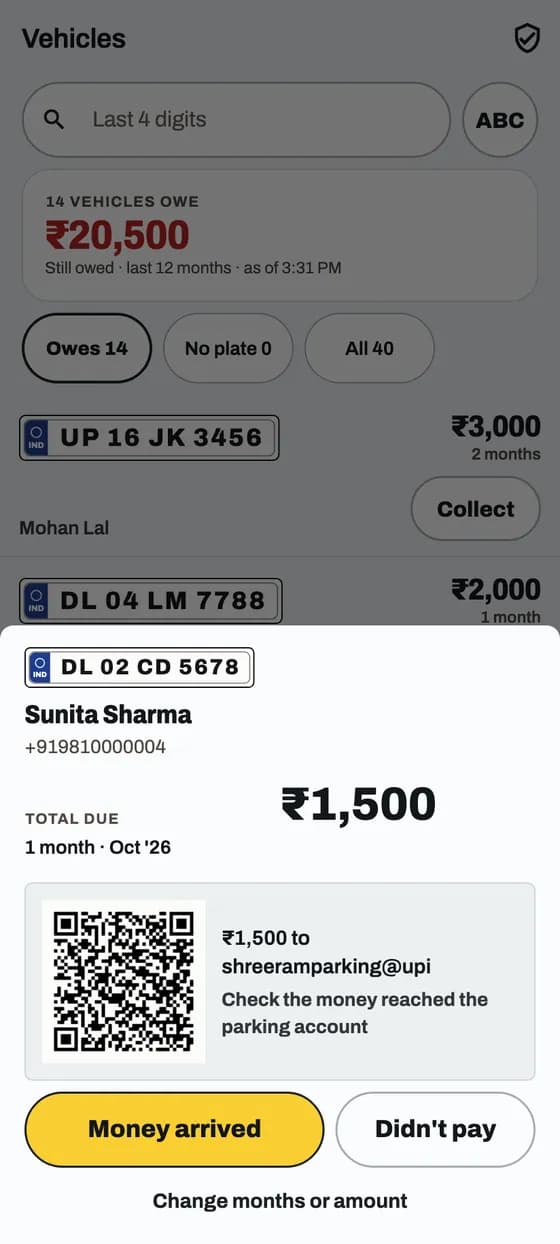
Collect money by UPI

Show a QR. You confirm only when the money reaches your account.

Collect money by UPI: screen 1 of 3

Good to know

  • No money? Tap Didn't pay. Nothing is recorded.
  • A customer showing payment done on their phone is not proof. Check your own app.

App and website

Collect more than one month, or just one

Pick the months you are collecting now. What is left stays owed.

Collect more than one month, or just one: screen 1 of 2

Good to know

  • The rest stays owed and shows on the vehicle.
  • Paying for a past month? Use Home, then Record payment.

App and website

Add an extra charge

A late fee or damage. It adds to what the vehicle owes.

Good to know

  • Untick a charge to leave it for later. The sheet then says, for example, ₹300 of extra charges stays owed. A part payment leaves charges owed too.
  • The Parking admin or a Manager can add a charge. Only the Parking admin can delete one.

App and website

Give a receipt

Every payment gets a numbered receipt. Send it on WhatsApp.
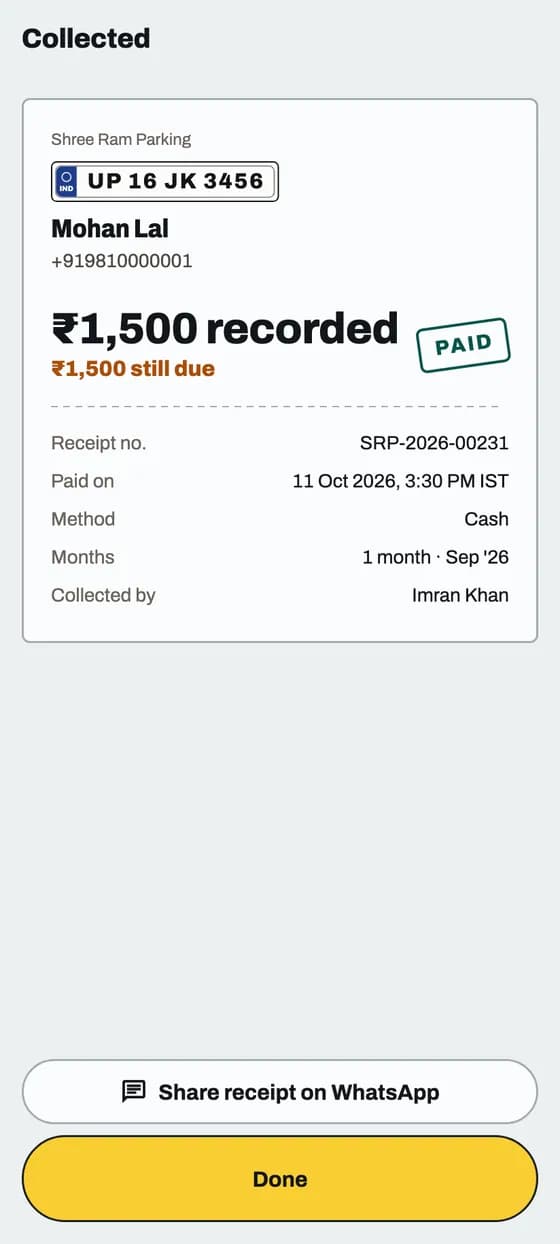
Give a receipt: screen 1 of 1

Good to know

  • Need an old receipt? Open the vehicle, tap History, then the receipt icon.
  • A part payment gets a part-paid stamp, not PAID. The app says Month so far · ₹500 of ₹1,500 paid. The website says Part paid · ₹500 of ₹1,500 · ₹1,000 still due.

App and website

Delete a payment collected by mistake

The money comes out of your totals and the vehicle owes it again.

Good to know

  • Only the Parking admin can delete a payment.
  • Paid online? Use Refund instead.

Your vehicles

App and website

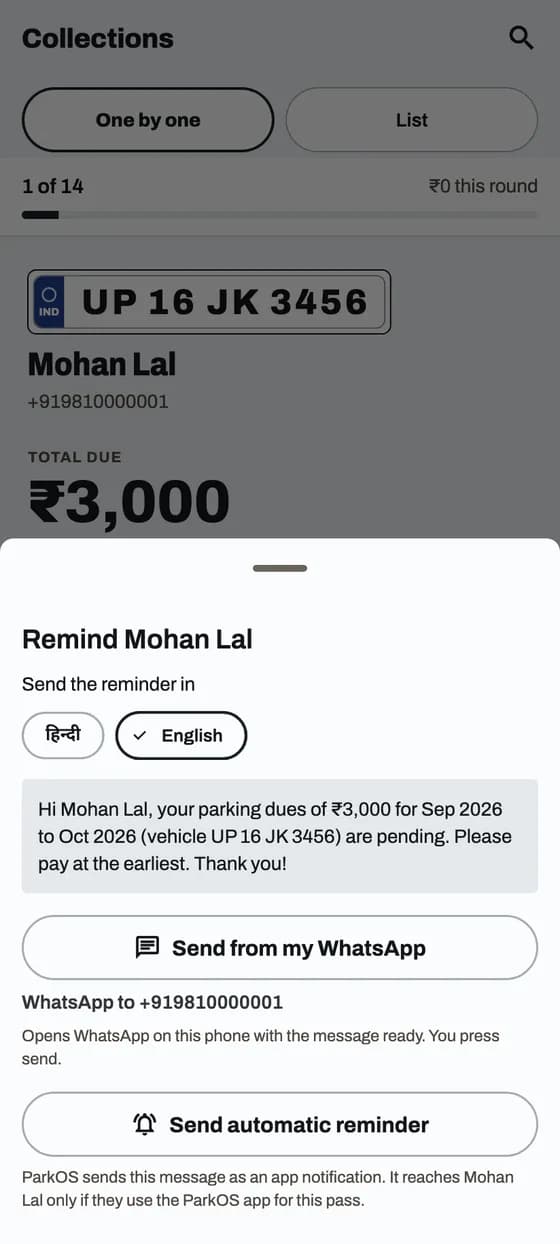
Remind a customer on WhatsApp

A polite message with the amount due, in English or Hindi.
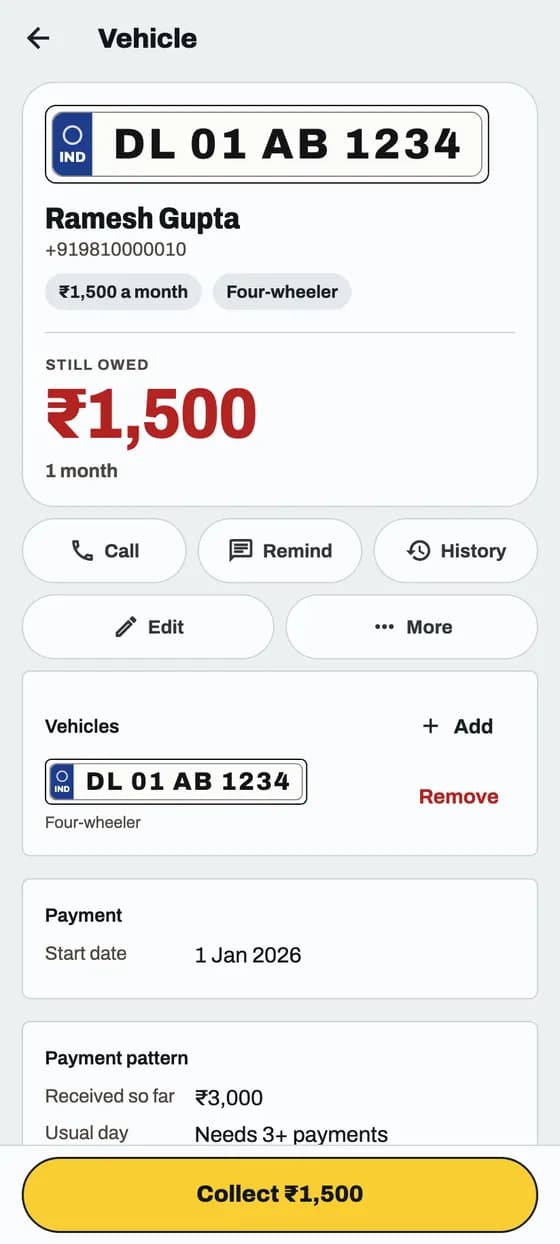
Remind a customer on WhatsApp: screen 1 of 2

Good to know

  • ParkOS also reminds overdue customers by itself, at most once every 3 days, until they are 45 days overdue. Then it stops.
  • Send automatic reminder sends an app notification instead. It reaches customers who use the ParkOS app.
  • A vehicle 15+ days overdue shows Overdue · 15+ days in the app and 15+ days overdue on the website. That is only a label. Reminders still go until 45 days.

In the app

Remind customers automatically

Set it once. ParkOS then sends polite reminders by itself.

Good to know

  • Automatic sending starts once WhatsApp or SMS is connected. Until then the screen says Automatic sending is off and nothing goes out.
  • Until then, send reminders yourself: open the vehicle and tap Remind, as in Remind a customer on WhatsApp above.
  • What you choose is saved even while sending is off.
  • Only the Parking admin and Managers see Reminders in Settings.

In the app

Check reminders and payment claims

See what was sent, stop reminders for one customer, and check who says they paid.

Good to know

  • Says already paid never marks anything paid. Check your own records, then tap Checked. Not paid? Collect as usual.
  • A message that did not go says why, for example WhatsApp or SMS is not connected yet.
  • Restore only if the customer asks for messages again. A Manager is told to ask the Parking admin.
  • Only the Parking admin and Managers see Reminders on a vehicle.

App and website

Bring back an old vehicle

A vehicle you end moves to Old. Its history stays and it never shows in dues.

Good to know

  • Only the Parking admin or a Manager can reactivate. A Collector can only look.
  • In the app the button is Change end date and shows only on active vehicles, so reactivate first. On the website it shows on old vehicles too.
  • To end a pass, open the vehicle and tap End pass. On the website it is Set inactive. Its end date becomes today. Money still unpaid stays on its record under Old vehicles and no longer shows in Still owed or Collect next.
  • Reactivate also clears an end date that is already in the past.

App and website

Give each car its own slot

A customer with more than one car can keep a different slot for each car.

Good to know

  • Only the Parking admin or a Manager can change a slot. A Collector can only look.
  • To free a slot, tap Remove slot on the website. In the app pick None.
  • On the website, a customer with 2 or more cars shows each plate with its slot in the Vehicles and Collections lists.

App and website

Correct a pass start date

Fix a wrong start date. ParkOS shows the new dues before you save.

Good to know

  • Only the Parking admin can change a start date. Managers and Collectors cannot.
  • If the new date is after a month that is already paid, ParkOS blocks it and lists those payments. Delete them first, then change the date.
  • A reason is required. Pick one, or choose Other and write your own (at least 3 letters).
  • The start date cannot be after the pass end date, or more than a year ahead.

Daily parking

In the app

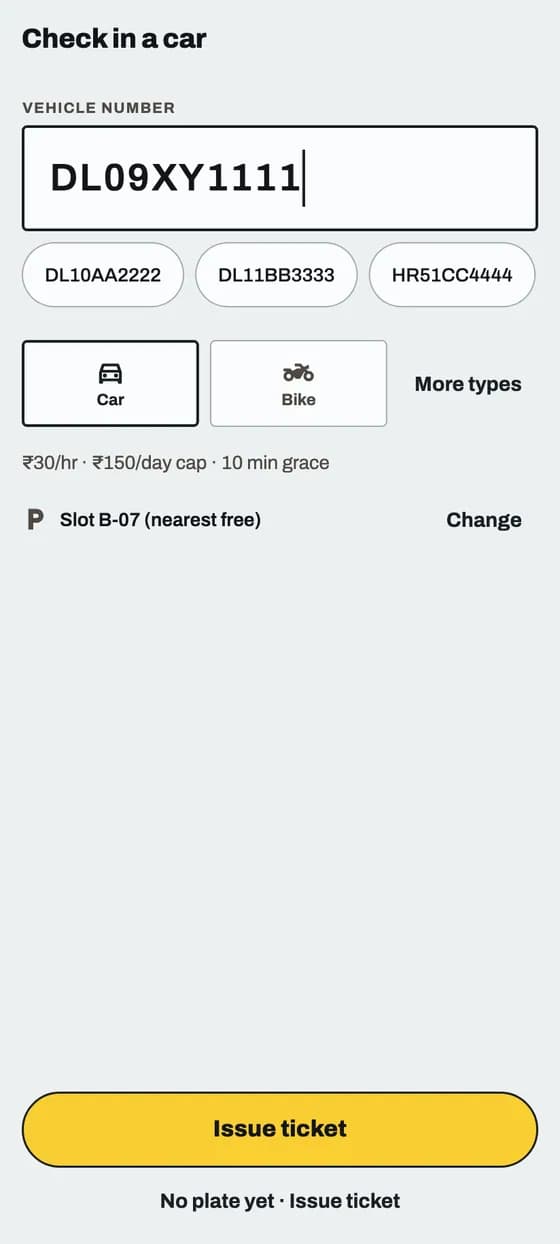
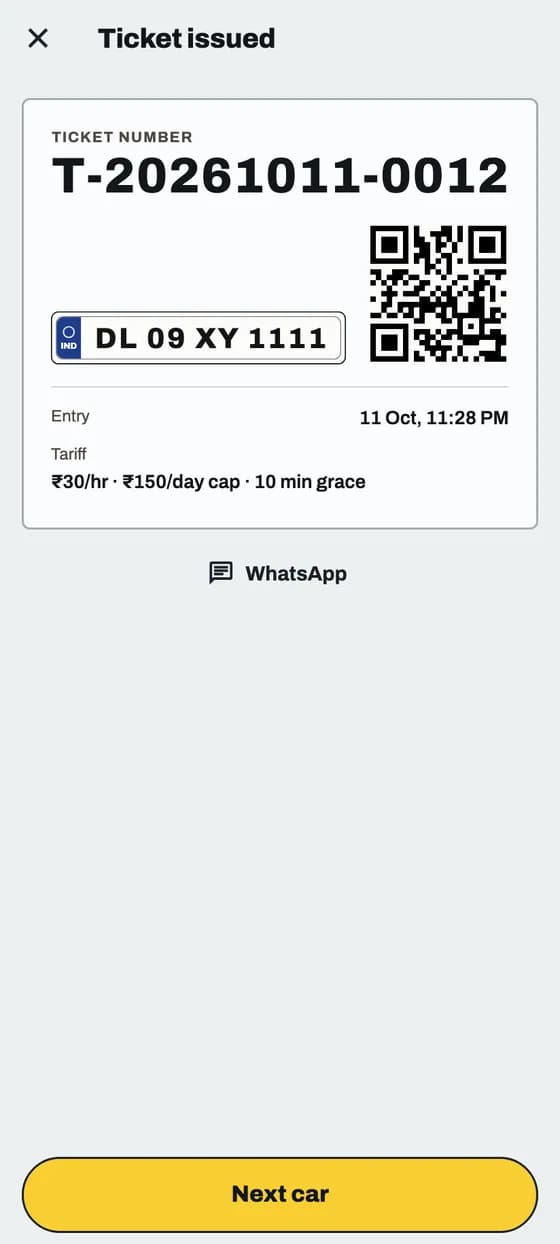
Check a car in

Make a ticket in a few taps. The car shows on Daily with a live timer.
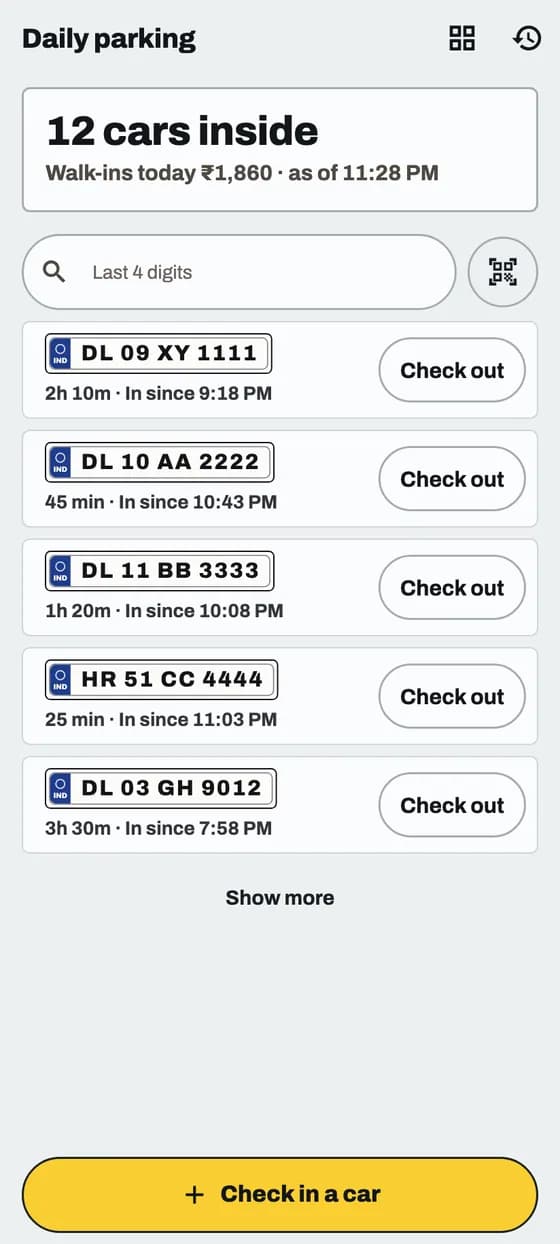
Check a car in: screen 1 of 3

Good to know

  • No plate yet? Tap No plate yet · Issue ticket.
  • No internet? The ticket is saved on the phone and sent later.
  • The price comes from your own parking's Daily rates (Settings, then Daily rates). If it says Rate card not loaded. Tap to retry., tap it.

In the app

Check a car out and collect

ParkOS works out the fee from your prices. You take the money.
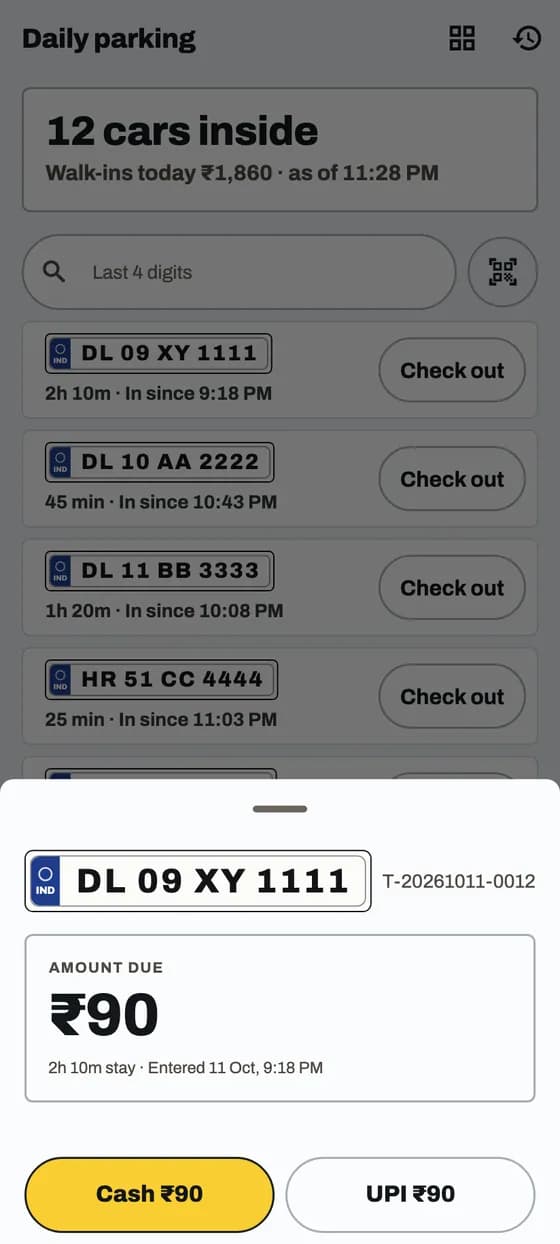
Check a car out and collect: screen 1 of 2

Good to know

  • Set your daily prices first. Without them ParkOS cannot work out a fee.
  • Driver lost the ticket? Find the car by its plate or ticket number.

Money and staff

In the app

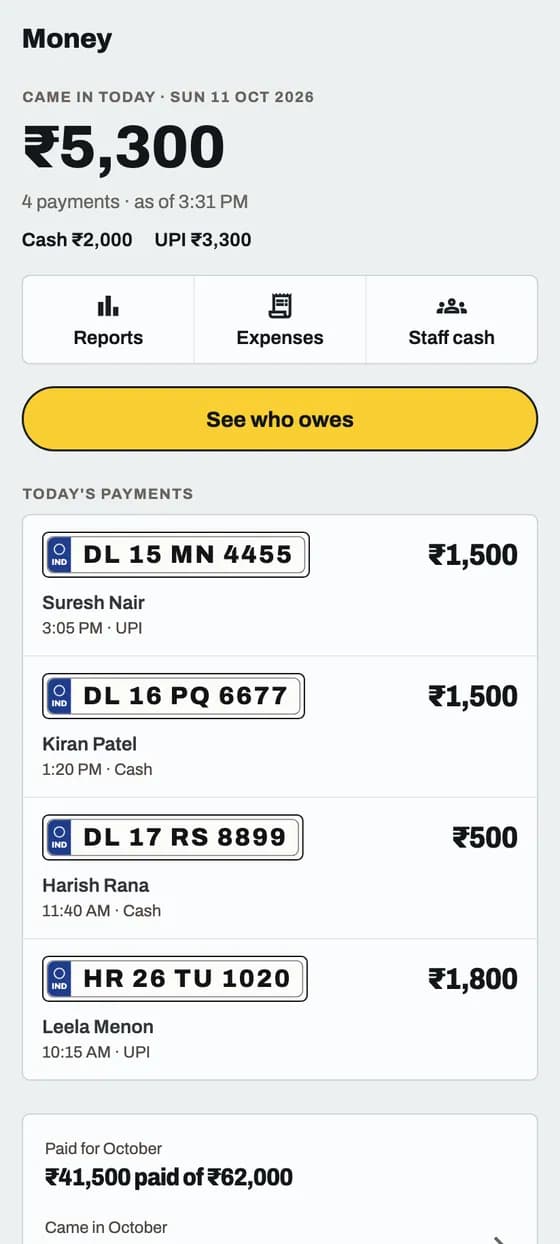
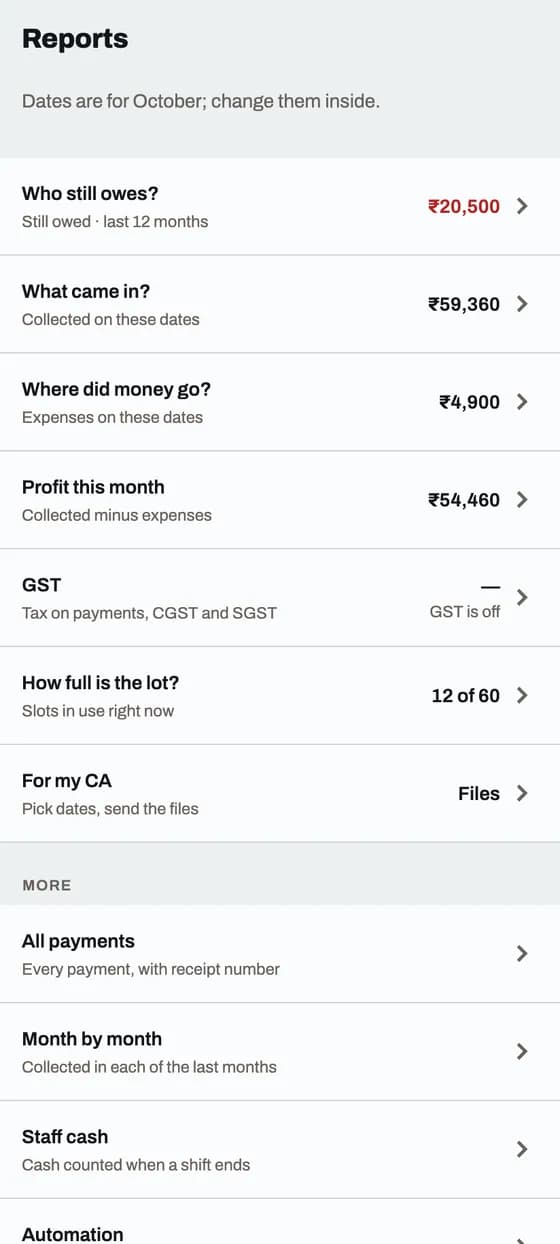
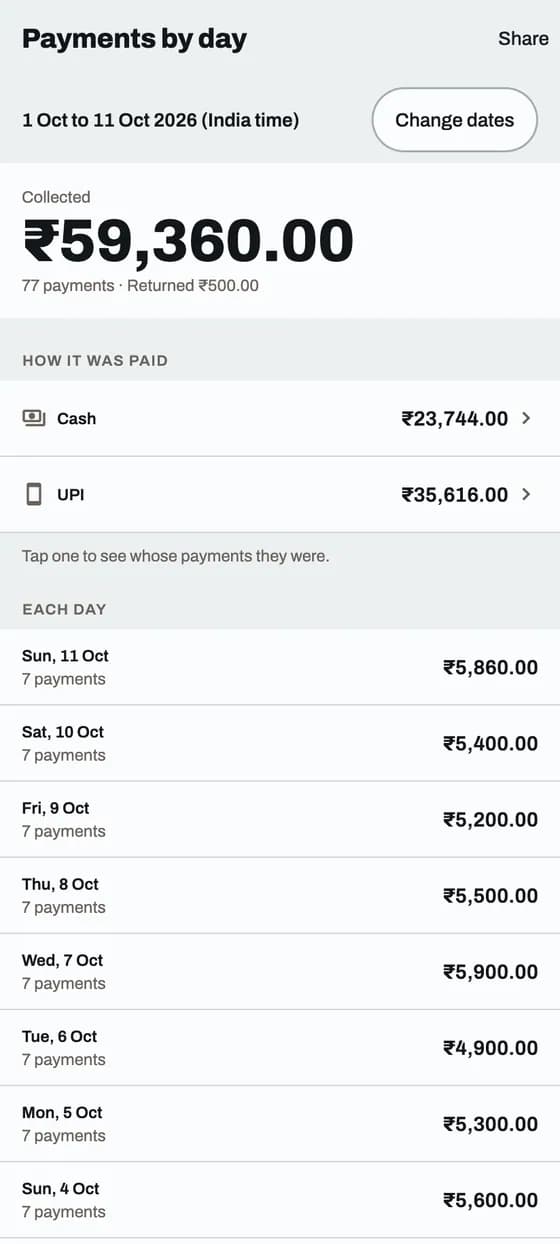
See your money and reports

Three words you will see. Each one says exactly what it counts.

See your money and reports: screen 1 of 4
Paid for
Money that settles this month's monthly rent. Extra charges and walk-in fees are not in it.
Came in
All money received, for anything. Monthly payments and walk-in fees, Cash and UPI.
Still owed
Unpaid bills from the last 12 months, added together. Unpaid extra charges are included.

App and website

See who collected each payment

Every payment shows the name of the person who took it.

Good to know

  • Online payments say Paid online.
  • Every receipt also shows Collected by.
  • Only the Parking admin and Managers can use the Collected by filter. In the app, a Collector sees every payment and who took it, and can tap Only mine.

App and website

See every customer's dues

One row per customer with everything they owe till date, not just this month.

Good to know

  • The app shares a CSV file. The PDF is on the website only.
  • Downloads that list customers or vehicles now have Plate number and Total dues till date (all months) columns, including Export CSV on the Vehicles page. Column names stay in English.
  • Old customers are counted apart. What they left unpaid is not added to what you are owed.

In the app

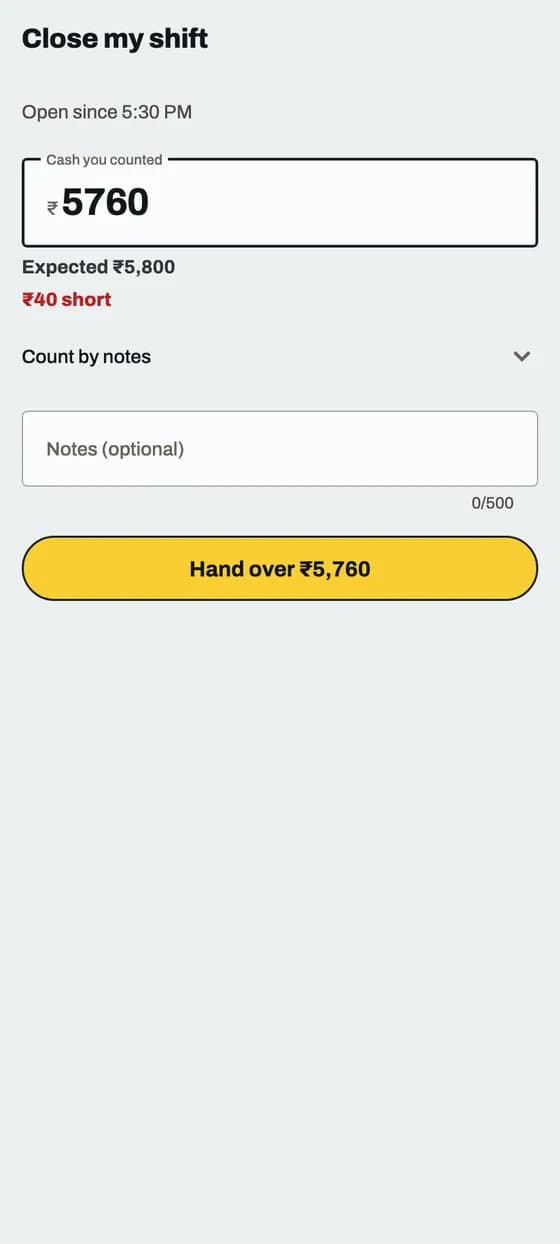
Close your shift

Staff count the drawer at the end of duty. ParkOS tells you if the cash matches.

Close your shift: screen 1 of 2

Good to know

  • Start of duty: open Money, then Staff cash, tap Open shift and type the cash already in the drawer.
  • A Collector finds Staff cash under Money, Reports, then More.
  • Count only cash. UPI money is not in the drawer. A closed shift cannot be reopened.
  • Shifts are for staff, that is Managers and Collectors. The Parking admin has no Shift open card and is never asked to open a shift. The Parking admin reviews every staff shift under Money, then Staff cash.

Help

In the app

Keep the app up to date

Small fixes come as an update. You tap Update, then restart the app.
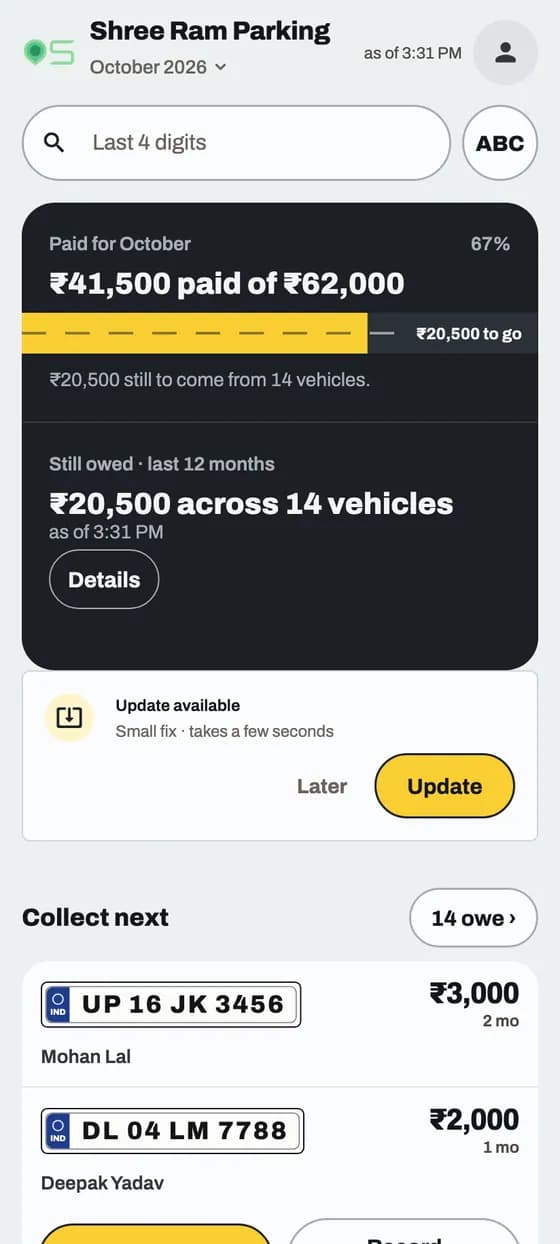
Keep the app up to date: screen 1 of 3

Good to know

  • Updates never delete your data. Money saved on the phone stays safe.
  • Tell us your version when you ask for help. It reads Version 1.1.25 (Patch 14). The number in brackets goes up with each update. Press and hold the line to copy it.
  • The app looks for an update when you open it. Nothing changes until you tap Update. Not now? Tap Later.

App and website

Get help from a person

Real people answer on WhatsApp: +91 70113 40142.
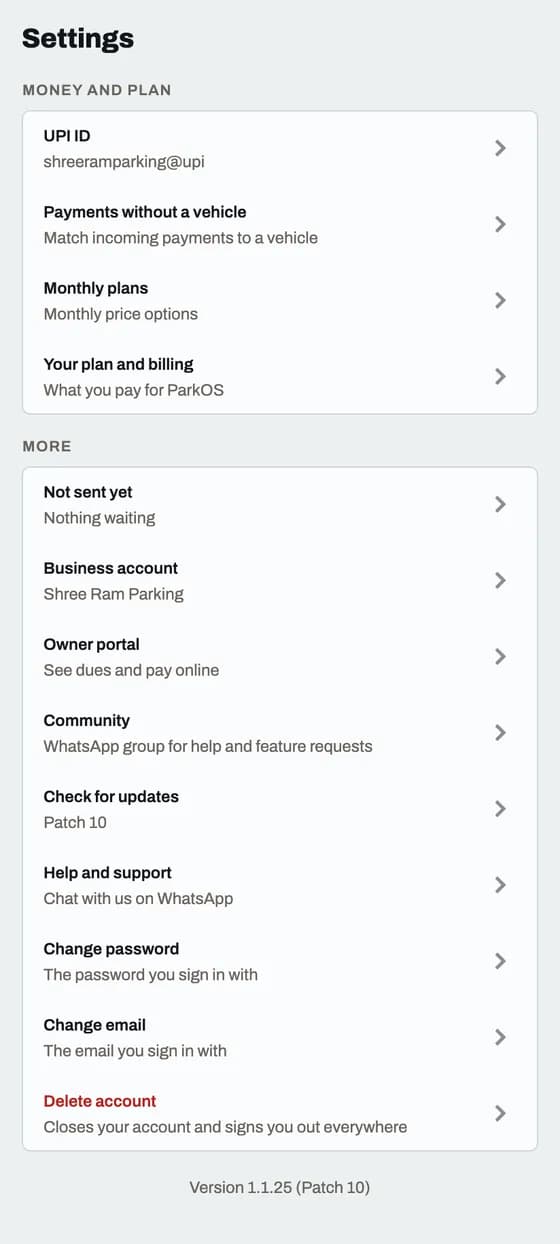
Get help from a person: screen 1 of 1

Good to know

  • Need more than 10 vehicles free? Ask us on WhatsApp. ParkOS support can give you more free vehicles. There is no button for it in the app or on the website.
  • In the app, Settings also has How it works. It opens this page, in English or Hindi to match the app.
Message us on WhatsApp

Your turn

Ready to try it on your parking?

Free for up to 10 vehicles. No card needed.
WhatsAppStart free